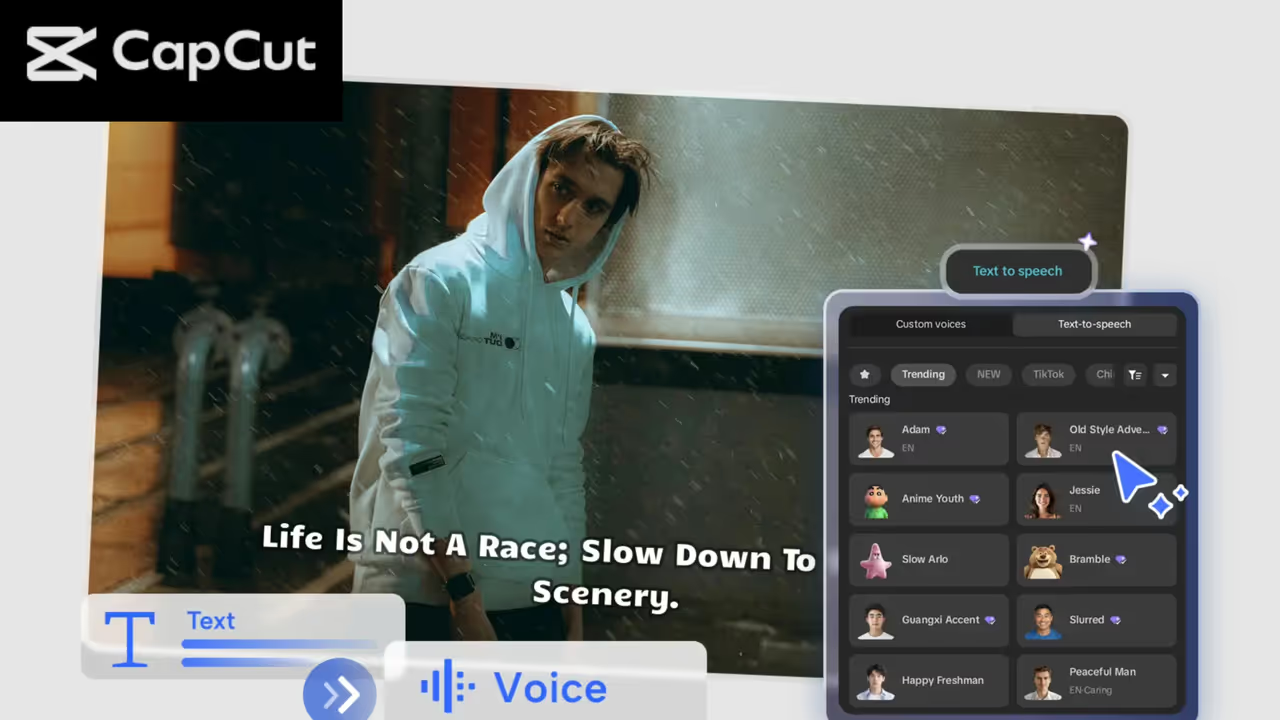
CapCut Text to Speech includes a wide range of voices—professional, casual, character-style, dramatic, robotic, and more.
Short-form videos dominate social media today, and if you want your content to reach more people, you need Shorts that grab attention in the first few seconds. One of the most effective ways to achieve this is to use CapCut Text to Speech AI. Whether you create tutorials, comedy bits, storytime videos, educational content, or product showcases, turning your script into a polished AI-generated narration can add clarity, consistency, and professionalism. Even better, Text to Speech helps creators who don’t feel comfortable recording their own voice or who want to produce videos faster without relying on microphones or quiet rooms.
Why Text to Speech Makes Shorts Better
The main advantage of Text to Speech is consistency. Instead of worrying about retakes, pauses, breathing sounds, or background noise, the AI delivers a smooth voiceover every time. This gives your Shorts a clean and professional tone, even if your setup is basic.
Related Articles

Creators also love TTS because it allows for experimentation. You can switch between various voices depending on your content’s mood—fun, friendly, dramatic, energetic, or educational. This flexibility helps you shape your brand identity while keeping viewers hooked. Most importantly, using Text to Speech speeds up your workflow. You can go from script to final narration in seconds. That means more content in less time, which is essential for building momentum on platforms like YouTube Shorts, TikTok, Instagram Reels, and Facebook Reels.
Secrets to Making Better Shorts Using CapCut Text to Speech
Here are the most reliable strategies successful creators use to improve their short-form content with CapCut’s narration tools:
1. Keep Your Script Short and Punchy
Shorts move fast. If your narration is too slow or filled with unnecessary details, viewers swipe away. Write short sentences, use clear language, and place important points at the beginning of the script.
2. Use Voice Styles That Match Your Niche
CapCut Text to Speech includes a wide range of voices—professional, casual, character-style, dramatic, robotic, and more. For educational Shorts, a clear and friendly voice works best. For comedy, experiment with character voices. For storytelling, try soft or emotional voices.
3. Sync Visuals With Voice Cues
If the script says, “Watch what happens next,” make sure your clip shows something exciting at that moment. Visual-narration alignment is one of the strongest engagement boosters.
4. Combine Text to Speech With On-Screen Captions
Viewers often watch Shorts on mute. Adding auto-captions or stylized text makes your video even more accessible and engaging.
5. Use Sound Effects and Music Wisely
A good narration becomes even more powerful when paired with subtle sound effects or catchy background music. CapCut’s library makes this easy.
How to Make Better Shorts Using CapCut Text to Speech AI
Step 1: Upload your video
Download and launch CapCut Desktop Video Editor. On the main interface, select “Create project” to start a new edit. Then click “Import” to bring your video clips, photos, or screen recordings into the media library. Drag your media onto the timeline to begin shaping your Short. You can trim clips, cut unwanted sections, or rearrange footage before adding narration. Preparing your visuals early makes the Text to Speech timing more accurate.
Step 2: Apply Text to Speech
Once your clips are arranged, select the clip or blank spot on the timeline where you want narration to begin. Go to the Text menu on the left and choose “Text to Speech.” A text box will appear, allowing you to type or paste your script. CapCut will present multiple voice options—male, female, emotional, energetic, robotic, or natural. Choose the one that fits your Short’s style. After selecting a voice, click “Generate” to let the AI create your narration. You can preview the sound to ensure it fits your pacing. If the voice is too slow or too fast, adjust the speed in the right-hand panel. You can also break long scripts into small sections to match each clip transition smoothly.
CapCut’s AI ensures clean, noise-free audio, making your narration professional and easy to listen to. Try CapCut's other AI features, such as AI Avatar, AI Video Generator, and more, to make your content shine.
Step 3: Export and share
When your Short looks polished and your narration syncs perfectly with the visuals, head to the top-right corner and select “Export.” Adjust settings such as resolution, frame rate, and quality based on the platform you're targeting. YouTube Shorts work best at 1080p with 60fps, while TikTok and Instagram Reels also support the same specs. After exporting, you can save the file to your device or upload it directly to your social platforms from CapCut. Now your Short is ready to reach more viewers and make a stronger impact.
Conclusion
CapCut Text to Speech AI isn’t just a convenient tool—it’s a creative advantage. It helps you produce clean narrations, maintain a consistent style, and deliver content faster than ever. When paired with thoughtful scripting, strong visuals, and good pacing, AI-generated voiceovers can elevate your Shorts from simple clips to attention-grabbing videos that stand out in crowded feeds.